
One social media outlet that many people aren’t familiar with is YouTube. Although YouTube has been around for more than 15 years, a good amount of people only utilizes the app to view videos other people have published. Whether it’s a picture, video, or opinion, when I go to post something I typically resort to the usual top social media apps (Instagram, Twitter, TikTok, Snapchat), but rarely do I find myself uploading to YouTube. At some point in the past year or two I had to create a video and upload it to YouTube for one of my college classes. Throughout this process I came to realize that uploading to YouTube can help you reach lots of new audiences, and the upload process is incredibly easy!
Why Should You Post on YouTube?
You might be in a situation where you have a content piece that you’ve planned out over the course of a few days and you wish to upload it, but you’re looking for an outlet to post outside the usual social media platforms. YouTube may not be your ideal spot for posting material, but there are certainly benefits that come from YouTube such as:
-
- Over 100 million daily users
- Specific search results and qualified traffic
- Marketing through google
- Advertisements help reach more people (and may lead to monetization)
- Post on YouTube and embed video links in blogs or websites
Before You Upload
Once you record your desired video, I recommend you run it through an editing software to add transitions, sound/video effects, and cut out any unnecessary footage. I’ve provided a list of 8 design/editing services you can use if you haven’t had experience with editing. It’s also important to size your video to fit YouTube’s standard dimensions (1280x720p and 1920x1080p or better). After you feel comfortable with your desired product, it helps to include a thumbnail, intro, and outro, since users are more inclined to click on your video if you have them.
Uploading Video Through YouTube
On a computer, visit YouTube’s website and sign in if you aren’t already (make sure to create a new account or switch to another account if you’re signed into your personal account).
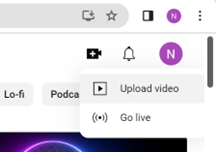
Once you’re logged in click on the camera icon, which can be found in the upper right corner of the screen.
Your content goes here. Edit or remove this text inline or in the module Content settings. You can also style every aspect of this content in the module Design settings and even apply custom CSS to this text in the module Advanced settings.

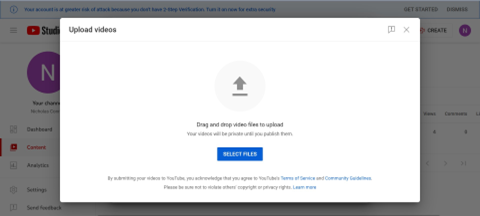
Drag/upload the file or desired video you wish to upload from your device. (If you want to upload a video over 15 minutes long, you must verify your YouTube account.)
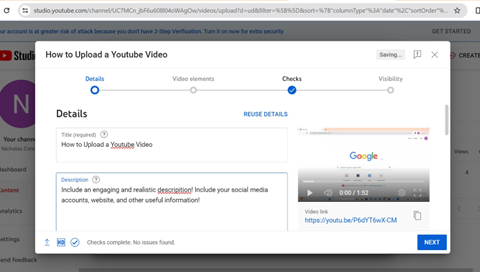
A title is required by YouTube when publishing a video. Try to create a title that draws in viewers while reflecting the main message/theme. The description area is optional, but you should always include a summary containing keywords so that your video appears from relevant searches.
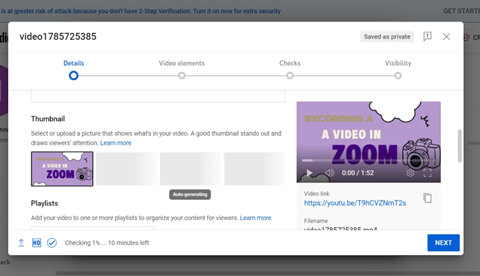
As I stated earlier in this piece, thumbnails are basically a necessity when publishing a video, which is why I encourage you to do this step before you go to post your video. Much like the title, try to put together an image that draws in viewers, but don’t overdo it with unnecessary effects or icons.
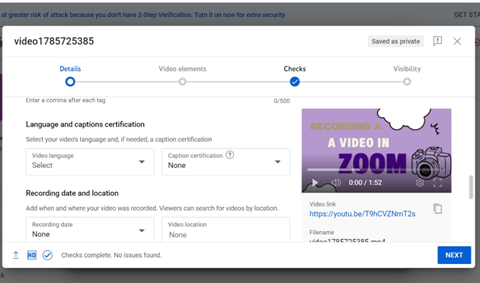
After you specify whether your video is acceptable for children to view, you can click on the ‘more options’ tab if you want to include some optional features throughout your video such as:
- Promotions
- Tags
- Closed captioning/subtitles
- Category
- Licensing
- Location
- Comment section settings
- End Screen (links to other videos or outlets)

When you go to publish your finalized video with the YouTube settings you’ve applied, you can choose to post it publicly so that anyone can view it, unlisted (meaning anyone who has the link can view the video), or privately.